iOS 26 Liquid Glass Buttons: How to Maintain Your App’s Custom UI
Author: Connor Willans
16 March, 2026
The Update That Changed Everything
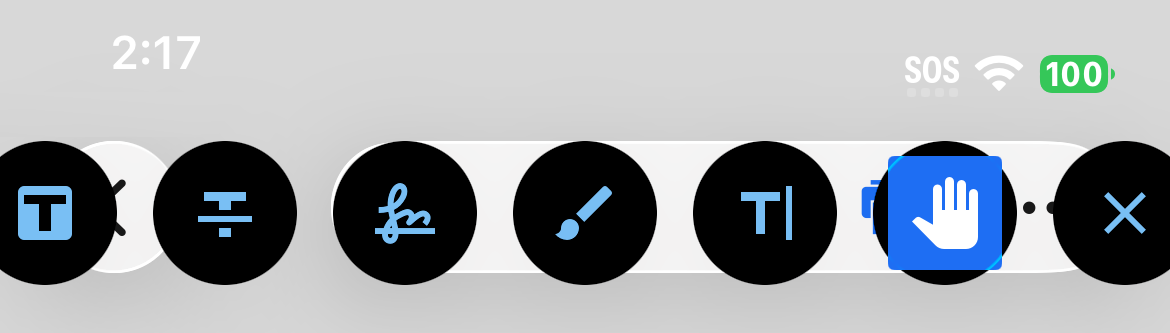
Apple’s release of iOS 26 alongside Xcode 26 introduced a significant change to native UI components: all standard buttons now default to Apple’s new “liquid glass” design system. While this modern aesthetic works in many Apple-built applications, developers discovered that this mandatory styling was breaking carefully crafted custom UI designs across the App Store.
If your app relied on precise button styling to match your brand identity, you likely woke up to some frustrated users and developers in crisis mode.
The Problem: Forced Uniformity
The liquid glass effect, with its translucent, blurred background and dynamic light-reactive surface, can look good. But when your app’s entire design language centers on flat, bold colors or skeuomorphic elements, the sudden shift can feel jarring and inconsistent.
Developers found themselves facing an impossible choice: rewrite their entire UI to match the new standard, or search for a workaround.
The Solution: UIDesignRequiresCompatibility
Buried in the iOS 26 documentation is a custom Info.plist key that acts as a lifeline for apps needing design continuity: UIDesignRequiresCompatibility.
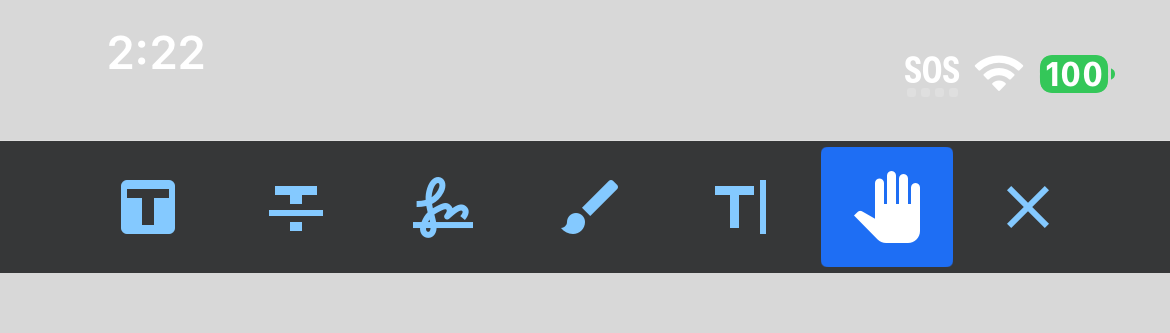
By adding this key to your Info.plist and setting its value to true, you tell iOS to respect your app’s original button styling and disable forced liquid glass rendering on standard UIButton instances.
Implementation
It’s straightforward. Open your app’s Info.plist file and add:
<key>UIDesignRequiresCompatibility</key>
<true/>
Or, if you’re using Xcode’s property list editor, add a new row with:
- Key: UIDesignRequiresCompatibility
- Type: Boolean
- Value: Yes
That’s it. Your buttons will render using your legacy styling, giving you time to thoughtfully migrate your design system.
What This Means for Your App
This compatibility flag is not a permanent solution. Apple’s long-term vision is clear. But it buys your team breathing room to:
- Gradually integrate the liquid glass aesthetic into your design
- A/B test the new styling with your users
- Update custom button subclasses to work harmoniously with the new system
- Avoid a rushed redesign that alienates your user base
The iOS 27 Question: How Long Will This Actually Last?
While UIDesignRequiresCompatibility provided relief for iOS 26, developers are asking the hard question: how many more iOS versions can we rely on this flag?
According to Apple’s developer roadmap and statements from WWDC 26, iOS 27 is expected to deprecate this compatibility flag entirely, meaning apps that don’t actively migrate their UI will face forced liquid glass rendering with no opt-out mechanism.
What We Know About iOS 27
- No Deprecation Warning in iOS 26: Apple chose not to add deprecation warnings to the flag in iOS 26, suggesting they may have planned a hard cutoff rather than a gradual sunset. Many are hoping this is not the case.
- Stricter App Review Guidelines: Early reports from beta testers indicate that iOS 27’s App Review may begin rejecting apps still using UIDesignRequiresCompatibility, pushing developers to comply faster.
- Possible Exceptions for Specific Use Cases: There’s speculation that Apple may allow limited exceptions for apps with very specific accessibility or medical use cases, but this hasn’t been confirmed.
The Real Question: Will There Be Workarounds?
The answer is probably yes, but with caveats. Developers have historically found creative solutions to Apple’s design mandates:
- Custom UIButton Subclasses: It’s likely that fully custom button implementations (not using standard UIButton) will maintain styling control, though this means more development work.
- UIView Alternatives: Using UIView with gesture recognizers instead of UIButton might bypass some liquid glass rendering, though this creates accessibility challenges.
- Region-Specific Variations: Some developers suspect Apple may region-lock stricter enforcement, though this remains unconfirmed.
However, Apple has been increasingly resistant to workarounds that undermine their design vision. Don’t count on hacks to save you. The pragmatic approach is to plan your migration now, with an aggressive timeline of iOS 27 readiness.
What Developers Should Do
Start auditing your UI now:
- Identify all liquid glass conflicts in your current design
- Plan a phased migration rather than a complete redesign
- A/B test liquid glass variants with your user base to inform decisions
- Don’t rely on UIDesignRequiresCompatibility beyond iOS 26. Treat it as a band-aid, not a long-term solution
Real-World Impact: A Case Study
The theoretical problems described above became very real for one of our clients. We worked with an app that provides detailed information on industrial mining operations. The app’s interface depended on a custom app bar with precisely-sized action buttons, a hamburger menu, search functionality, and a conditional button that appears only in specific contexts.
The Problem They Faced
When iOS 26 rolled out, the app’s users immediately noticed issues:
- Stretched Liquid Glass: The team had designed the hamburger menu button with a stretched tap target. The liquid glass effect, however, rendered behind the entire button. When stretched to make the tap target larger, the glass extended awkwardly, creating a visual artifact that looked broken rather than polished.
- Phantom UI Elements: More confusingly, a liquid glass bubble appeared in the top-right corner of the app bar. Despite this being a conditionally rendered button that doesn’t even display on many screens, the glass was rendering regardless of whether the button itself was visible, creating a confusing visual element.
- Layout Issues: The overextended glass effects began causing buttons to overlap and clip off-screen, breaking the carefully-tuned layout that had been tested with thousands of real users. Buttons, Dropdown menus, and search bars, all were affected.
Before and After
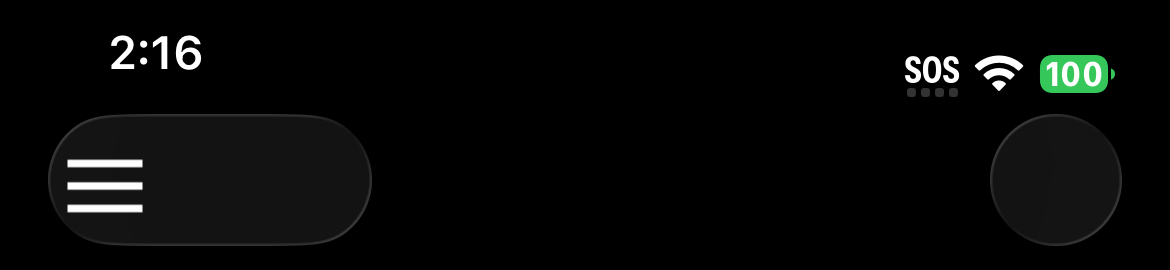
In our before image, you can see the stretched hamburger icon on the left with a distorted liquid glass backing, while a mysterious glass bubble appears on the right despite no button being rendered there. The app bar looked more like a visual bug than intentional design.
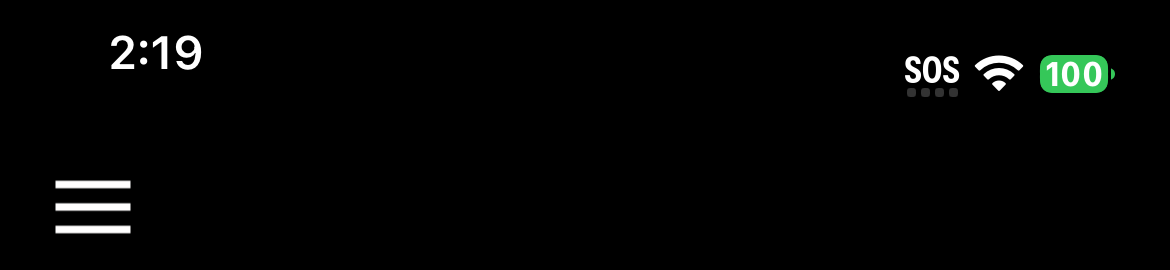
After adding UIDesignRequiresCompatibility to the Info.plist, the app bar returned to its original, clean appearance. The buttons behaved as designed, the tap targets remained accessible, and users stopped complaining about the visual oddities.
The Lesson
This wasn’t a case of developers rejecting modernity, it was a real accessibility and functionality problem. The liquid glass effect, applied forcefully across all buttons without consideration for custom layouts, broke an app that was serving a real user need. The compatibility flag gave the team time to properly evaluate how, or whether, to integrate the new design system.
But our team knows the flag is temporary. They’re already prototyping iOS 27-ready designs, working with their UX team to find a middle ground between accessibility and Apple’s design vision.
Looking Ahead
The liquid glass update is ultimately a step forward for iOS design consistency. But it’s a reminder of forced uniformity, and can create friction in the real world. Apple’s inclusion of the compatibility flag shows they’re learning to balance innovation with pragmatism.